Manage Tickets
Once you have created a project and defined its statuses, you can start adding tickets to manage your tasks. Tickets represent individual work items within your project.
Adding Tickets to a Project
To create a new ticket, use the following command:
lucy new ticket "Implement authentication for pets" --project DEMO
lucy new ticket "Implement purr-based two-factor authentication (P2FA)" --project DEMO
lucy new ticket "Integrate with laser pointer for user engagement" --project DEMO
See the command reference for more options available when creating a new ticket.
Updating Tickets
To update the status of an existing ticket, use the following command:
lucy update ticket DEMO-1 --status DONE
lucy update ticket DEMO-2 --status IN-PROGRESS
lucy update ticket DEMO-2 --description "See title for details"
lucy update ticket DEMO-3 --title "Develop laser pointer feature to redirect unproductive devs"
See the command reference for more options available when updating a ticket.
Deleting Tickets
To delete an existing ticket, use the following command:
lucy delete ticket DEMO-1
This action is irreversible and will permanently delete the ticket and any associated comments. The ticket sequence number will not be reused.
See the command reference for more information on deleting tickets.
Commenting on Tickets
To add a comment to an existing ticket, use the following command:
lucy new comment DEMO-1 --content "Authentication implemented using pet biometrics."
When updating or deleting comments, you will need to reference the comment by its unique ID.
e.g., lucy update comment 1 --content "Updated comment content."
Visualizing Tickets
List
To list all tickets in a project, use the following command:
lucy list tickets DEMO
lucy list tickets DEMO --status TODO
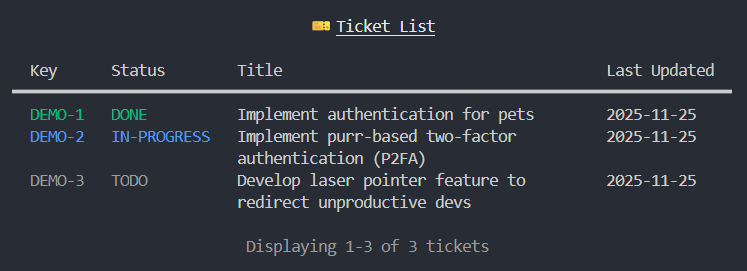
You can filter tickets by status using the --status option.
See the command reference for more options available when listing tickets.
Show
To view the details of a specific ticket, use the following command:
lucy show ticket DEMO-1
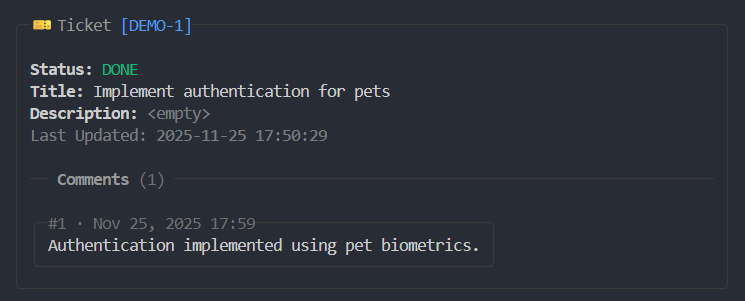
Board View
To visualize tickets in a Kanban-style board, use the following command:
lucy show board DEMO
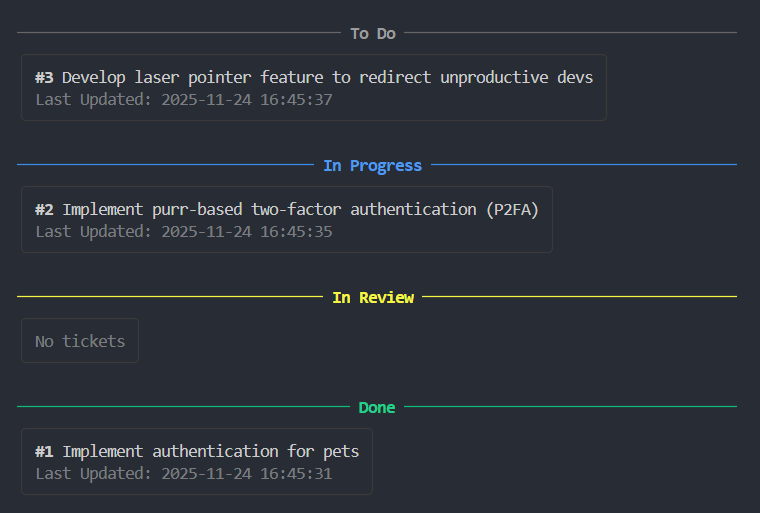
See the command reference for more options available when displaying the board view.